
Best VPS for Beszel in 2026: Requirements, Hosting Costs & Setup Guide
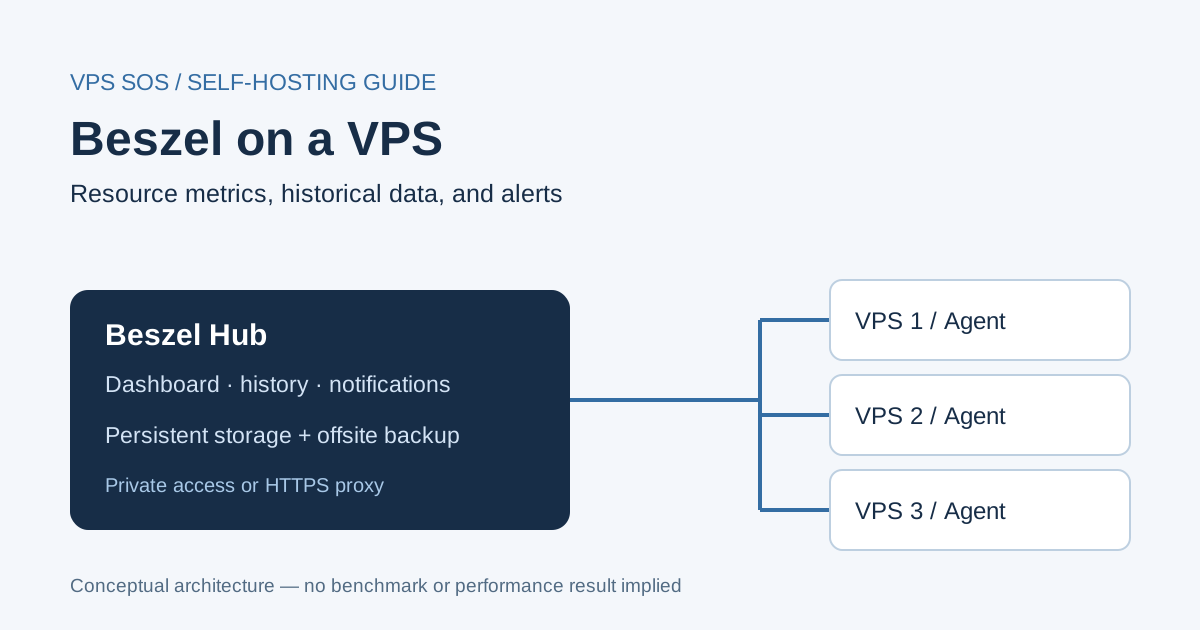
The best VPS for Beszel is usually a modest Linux server with persistent SSD storage, reliable access to your monitored machines, and enough spare memory for the operating system. Beszel is a lightweight server monitoring platform that collects CPU, RAM, disk, and network metrics, tracks Docker containers, and presents historical charts and alerts in a self-hosted monitoring dashboard.
That makes it useful when several VPS instances are running applications and you want to understand resource pressure before a disk fills or a process runs out of memory. One central dashboard can monitor multiple servers without installing a full metrics-query and visualization stack.
Choosing Beszel VPS hosting still involves more than finding the smallest bill. Your Hub needs recoverable storage, protected administrator access, and a placement that avoids sharing every failure with the applications it watches. This guide explains practical sizing, compares five providers, and shows how to install Beszel on an Ubuntu VPS with Docker Compose.
Published November 2, 2026. Specifications and official documentation were checked for this guide; no purchased-server benchmarks or firsthand reliability claims are implied. Prices exclude tax and optional extras. The LightNode link is an affiliate link; we may earn a commission.
What Is Beszel?
Beszel separates monitoring into a Hub and an Agent. The Hub stores data and serves the dashboard. An Agent runs on each monitored machine and supplies its system and container measurements. You can add another VPS without deploying another dashboard. See the official overview.
Compared with assembling Prometheus exporters, a metrics database, and Grafana dashboards, Beszel provides a narrower, more ready-made workflow. That suits individual developers, small teams, and self-hosting users who need readable infrastructure history rather than a general-purpose observability platform.
It does not remove the need for application logs, tracing, or an outside availability check. A server can have healthy RAM usage while its checkout endpoint returns errors. Monitoring your n8n deployment or Coolify server therefore benefits from both resource metrics and application health checks.
Beszel VPS Requirements
The reviewed installation documentation explains supported deployment methods but does not establish a universal numeric CPU/RAM minimum. Every numeric allocation below is an editorial planning estimate for the Hub VPS, including Linux and Docker overhead, not an official requirement or a guaranteed server count.
| Resource | Minimum / Small Setup | Recommended / Multiple Servers | Larger Monitoring Setup |
|---|---|---|---|
| CPU | 1 shared vCPU | 1–2 vCPU | 2–4 vCPU; measure sustained load |
| RAM | 1 GB | 2 GB | 4–8 GB, then reassess |
| Storage | 20–25 GB SSD total | 40–50 GB SSD total | 80 GB+ SSD; size from measured growth |
| Operating System | Ubuntu 24.04 LTS, 64-bit | Supported 64-bit Linux; Ubuntu used here | Maintained Linux with tested backup/restore |
| Docker/Podman | Supported; binary deployment also available | Current Docker Engine + Compose plugin | Same, with planned upgrades |
| Network Requirements | Private admin access; working Agent connection | HTTPS Hub or private routed network | Explicit firewall rules, DNS and monitored connectivity |
| Recommended Use Case | Personal evaluation, few systems | Several VPS hosts and containers | More hosts, containers or retained history |
The Agent has a different job: it collects local information rather than storing the complete fleet history. Do not reserve a separate 2 GB VPS for every Agent; allow headroom on each existing host and measure the incremental cost. Docker container count, collection settings, concurrent dashboard use, and retained metrics can change Hub demand.
A 1 GB machine is a reasonable small evaluation target, but a 2 GB host leaves more room for updates and a reverse proxy. Keep free disk for images, logs, database growth, and temporary backups. Review retention before assuming a 50 GB disk will last indefinitely; no universal GB-per-server estimate is promised here.
For a lightweight server monitoring VPS, placement matters too. A Hub on the same machine as every critical workload cannot report that machine's complete outage through its own dashboard. Prefer a separate failure domain and an external heartbeat or uptime check when availability matters.
How Much Does Beszel Hosting Cost?
Beszel has no per-server software subscription for self-hosting. Your bill covers compute, retained data, network transfer, backups, and possibly a domain. These USD monthly budget ranges are estimates, not provider offers; labor, taxes, and paid notification services are additional.
| Hub configuration | Estimated compute | Estimated offsite backup reserve | Estimated monthly total |
|---|---|---|---|
| 1 vCPU / 1 GB / 20–25 GB SSD | $5–$8 | $1–$3 | $6–$11 |
| 1–2 vCPU / 2 GB / 40–55 GB SSD | $8–$15 | $2–$5 | $10–$20 |
| 2–4 vCPU / 4–8 GB / 80 GB+ SSD | $20–$50 | $5–$10 | $25–$60 |
The verified DigitalOcean 1 GiB plan is $6; its 2 GiB plan is $12. Linode's base-region 2 GB backup add-on is $2.50, making that example $14.50 before other costs. Those specific quotes are separate from the illustrative reserves above.
Longer retention raises storage needs, while additional containers and systems add collection and database work. Metrics traffic is different from streaming video, but avoid promising negligible bandwidth for every fleet. Count Agent traffic, dashboard access, software downloads, and offsite backup transfers against the selected allowance.
A subdomain on an existing domain may avoid a new registration. Otherwise, budget the registrar's actual renewal price, not just a first-year promotion. A persistent volume protects against container replacement; it does not pay for or create an independent backup.
Best VPS Providers for Beszel in 2026
These are self-managed infrastructure recommendations based on public specifications. Entry prices and suggested configurations differ. Check regional inventory, IPv4, backups, and the final checkout total before buying.
| Provider | Verified starting price | Suggested Hub configuration | Suggested-plan price | Best for |
|---|---|---|---|---|
| LightNode | $7.71 monthly reference | 1 vCPU / 2 GB / 50 GB NVMe | $7.71 reference | Hourly trials and regional choice |
| DigitalOcean | $4/month, 512 MiB | 1 vCPU / 2 GiB / 50 GiB SSD | $12/month | Documented developer deployment |
| Vultr | $5/month for verified 1 GB regular plan* | 1 vCPU / 2 GB / 55 GB SSD | $10/month base | Matching a preferred region |
| Akamai Cloud / Linode | $5/month Nanode, base region | 1 vCPU / 2 GB / 50 GB disk | $12/month base | Conventional Linux administration |
| Hetzner | Current quote required | CPX12: 1 vCPU / 2 GB / 40 GB NVMe, if available | Current quote required | Comparing available EU capacity |
*Vultr's verified 1 GB plan is an entry option for this guide, not a claim that it is the entire catalog's cheapest plan. Sources: Vultr public plans API, Linode 2 GB API, and Nanode API; other plan sources are linked in the table.
1. LightNode: Flexible Hourly Beszel Hosting

LightNode recommendation
Suggested configuration: Start Linux, 1 vCPU, 2 GB RAM, 50 GB NVMe SSD, and 1 TB listed transfer. Starting price: $7.71 displayed monthly reference.
LightNode offers KVM virtual machines, root access, dedicated IP addressing, and locations across several continents. Linux and Docker support make this an ordinary self-managed Beszel installation, rather than a verified managed Beszel product.
Pros: Hourly billing supports short evaluations; regional options include Southeast Asia and the Middle East. Cons: Its official FAQ currently lists IPv4 only and one IPv4 per instance, which matters for IPv6-only environments. Best for: Users who want a 2 GB starting allocation and flexible deployment locations.
The billing FAQ describes a 672-hour server-fee cap for a complete calendar month and continuing charges for stopped instances. Confirm traffic-plan charges and deletion rules in the console. The current listing specifies 1 TB transfer; a universal 50 Mbps port was not verified. Transfer allowance and port speed are different quantities.
2. DigitalOcean: Developer Documentation and Clear Plan Sizes

DigitalOcean recommendation
Suggested configuration: Basic Regular, 1 vCPU, 2 GiB RAM, 50 GiB SSD, 2,000 GiB transfer, $12/month. Starting price: $4/month for 512 MiB, below our planning baseline.
Droplets provide Linux VMs with API-driven administration and documented installation paths. Pros: Clear resource tiers simplify resizing and budgeting. Cons: The lowest advertised plan leaves little operating-system headroom; backups and other add-ons increase cost. Best for: Developers learning cloud operations or already using DigitalOcean.
Bundled plans have monthly caps and per-second billing with a minimum of 60 seconds or $0.01, whichever is greater. Choose an available region and keep the monitoring instance separate from application failure where practical.
3. Vultr: Region-Oriented Deployment

Vultr recommendation
Suggested configuration: vc2-1c-2gb, 1 vCPU, 2 GB RAM, 55 GB SSD, 2,048 GB transfer, $10/month base. Verified 1 GB entry: $5/month.
Vultr's regular compute catalog includes Linux instances across many regions. Pros: Broad location selection and a smaller evaluation tier. Cons: Regional overrides change the total: the recommended plan is $15/month in São Paulo. Best for: Buyers prioritizing a particular deployment region.
The API lists $0.014/hour for the suggested base plan; do not substitute a different compute family's rate. Listed locations are catalog coverage, not guaranteed spare capacity or latency measurements. Confirm IPv4 and backup charges for the selected order.
4. Akamai Cloud / Linode: General-Purpose Linux Hosting

Akamai Cloud recommendation
Suggested configuration: Linode 2GB, 1 vCPU, 2 GB RAM, 50 GB disk, 2,000 GB transfer, $12/month base. Starting price: Nanode 1GB, $5/month base.
The Linode plan ladder suits a conventional SSH-and-Docker workflow. Pros: A small evaluation tier and an explicitly priced backup option. Cons: Region-specific rates apply; the 2 GB plan is $14.40 in Jakarta and $16.80 in São Paulo. Best for: Administrators already comfortable with Linux VMs.
The base 2 GB backup add-on costs $2.50/month. It is optional, and a successful restore still needs testing. Account for separate storage and transfer charges where relevant.
5. Hetzner: Compare Available European Capacity

Hetzner recommendation
Suggested configuration: CPX12, 1 vCPU, 2 GB RAM, 40 GB NVMe, subject to inventory. Starting price: Not reliably verified; obtain a current quote.
Hetzner offers Linux cloud infrastructure, private networking, and an API. Pros: EU listings include substantial transfer allowances and hourly billing with a monthly cap. Cons: The checked catalog marked offers unavailable and omitted dependable prices. Best for: Budget-conscious administrators who can compare an actual available order.
Do not rank it cheapest using an old headline price. Confirm primary IPv4, tax, backups, and location-specific transfer before comparing its total with the verified USD examples.
How to Install Beszel on a VPS
This Beszel Docker Compose walkthrough follows the getting-started guide, Hub installation, and Agent installation. Commands target a fresh Ubuntu 24.04 LTS VPS. They are documentation-based instructions, not a claimed installation test on each host.
Step 1. Prepare an Ubuntu VPS
Use SSH keys and the provider's actual login user:
ssh ubuntu@YOUR_SERVER_IP
sudo apt update
sudo apt upgrade -y
sudo apt install -y ca-certificates curl
Keep SSH restricted to trusted sources at the provider firewall. Leave public port 8090 closed. Reboot if updates require it, then reconnect. Our Docker VPS comparison covers infrastructure selection.
Step 2. Install Docker and Docker Compose
On a clean image without conflicting Docker packages, use Docker's official Ubuntu repository:
sudo install -m 0755 -d /etc/apt/keyrings
sudo curl -fsSL https://download.docker.com/linux/ubuntu/gpg -o /etc/apt/keyrings/docker.asc
sudo chmod a+r /etc/apt/keyrings/docker.asc
sudo tee /etc/apt/sources.list.d/docker.sources > /dev/null <<EOF_DOCKER
Types: deb
URIs: https://download.docker.com/linux/ubuntu
Suites: $(. /etc/os-release && echo "${UBUNTU_CODENAME:-$VERSION_CODENAME}")
Components: stable
Architectures: $(dpkg --print-architecture)
Signed-By: /etc/apt/keyrings/docker.asc
EOF_DOCKER
sudo apt update
sudo apt install -y docker-ce docker-ce-cli containerd.io docker-buildx-plugin docker-compose-plugin
sudo docker run --rm hello-world
sudo docker compose version
Step 3. Deploy the Beszel Hub
Create /opt/beszel/compose.yaml:
sudo install -d -m 0755 /opt/beszel
cd /opt/beszel
sudo tee compose.yaml > /dev/null <<'EOF_COMPOSE'
services:
  beszel:
    image: henrygd/beszel:latest
    container_name: beszel
    restart: unless-stopped
    environment:
      APP_URL: http://localhost:8090
    ports:
      - "127.0.0.1:8090:8090"
    volumes:
      - ./beszel_data:/beszel_data
      - ./beszel_socket:/beszel_socket
EOF_COMPOSE
sudo docker compose config
sudo docker compose up -d
sudo docker compose ps
The Hub's default port is 8090. This adapts the official template with a loopback-only published port. The bind mount persists Hub data outside the container; keep this directory when recreating it. The mutable latest tag follows upstream; review releases and pin a tested version or digest for controlled upgrades.
Step 4. Access the Beszel Dashboard
On your own computer, keep this tunnel running:
ssh -N -L 8090:127.0.0.1:8090 ubuntu@YOUR_SERVER_IPOpen http://localhost:8090. If that local port is occupied, choose another local port and adjust the browser URL. The Hub remains inaccessible directly from the public internet.
Step 5. Create an Admin Account
Complete the first-run account prompt immediately with a unique password. Keep this bootstrap session private. Do not expose an unclaimed Hub publicly or reuse a hosting account password.
Step 6. Add a Server and Install the Beszel Agent
For the Hub's own VPS, choose Add System and enter /beszel_socket/beszel.sock as Host / IP. Copy the supplied public key and token. Append this service under the same services: mapping in compose.yaml, aligned with beszel::
  beszel-agent:
    image: henrygd/beszel-agent:latest
    container_name: beszel-agent
    restart: unless-stopped
    network_mode: host
    volumes:
      - ./beszel_agent_data:/var/lib/beszel-agent
      - ./beszel_socket:/beszel_socket
      - /var/run/docker.sock:/var/run/docker.sock:ro
    environment:
      LISTEN: /beszel_socket/beszel.sock
      HUB_URL: http://localhost:8090
      KEY: "REPLACE_WITH_HUB_PUBLIC_KEY"
      TOKEN: "REPLACE_WITH_GENERATED_TOKEN"
Replace both placeholders locally, then run:
sudo chmod 600 /opt/beszel/compose.yaml
sudo docker compose config --quiet
sudo docker compose up -d
sudo docker compose logs --tail=50 beszel-agent
KEY is the Hub's public key; TOKEN authenticates the Agent. HUB_URL supplies the destination for outgoing WebSocket connections. The shared Unix socket handles this local connection; container localhost is not a general way to address another container.
For another VPS, use its Add System-generated configuration, not the local socket path. Beszel supports Hub-to-Agent SSH, normally on Agent TCP 45876, or Agent-to-Hub WebSocket over the Hub's HTTPS URL. For SSH, allow the Agent port only from the Hub and ensure container forwarding works. For WebSocket, keep that port blocked inbound and allow outbound HTTPS to the Hub. See the security guide.
The Docker socket grants sensitive engine access even with a read-only mount; omit it if container monitoring is unnecessary. Never publish that socket over an unauthenticated network.
Step 7. Verify Monitoring Data
Confirm the system becomes connected and inspect CPU, memory, disk, network, and container charts. Compare with free -h, df -h, and sudo docker stats --no-stream; definitions and sampling windows can differ.
Configure a destination under Settings → Notifications, enable relevant system alerts, and test delivery using a disposable threshold. Check history after sudo docker compose restart. A chart appearing once does not prove alert delivery or backup recovery. Follow the notification documentation.
Step 8. Secure Your Beszel Installation
Keep SSH-tunnel access for a private local-only setup. For remote Agents using WebSocket, configure HTTPS first. Point beszel.example.com at the Hub, install Caddy using its official Ubuntu instructions, and place this in /etc/caddy/Caddyfile:
beszel.example.com {
    request_body {
        max_size 10MB
    }
    reverse_proxy 127.0.0.1:8090 {
        transport http {
            read_timeout 360s
        }
    }
}
Change Hub APP_URL to https://beszel.example.com, recreate it with sudo docker compose up -d, validate Caddy, and reload:
sudo caddy validate --config /etc/caddy/Caddyfile
sudo systemctl reload caddy
curl -I https://beszel.example.com
Allow TCP 80/443 for certificate issuance and HTTPS; retain the loopback binding and block public 8090, including IPv6. Docker-published ports can bypass ordinary UFW expectations. Caddy supports WebSockets; an extra blanket authentication layer can block Agents unless deliberately configured. Consult the Beszel proxy guide.
Protect logins, restrict account access, patch Linux and containers, and store backups off the VPS. Beszel supports disk or S3-compatible backups; test restoration on an isolated replacement. Back up before upgrades, preserve Agent configuration securely, and never use docker compose down -v as a routine update command.
Beszel vs Uptime Kuma
| Area | Beszel | Uptime Kuma |
|---|---|---|
| Primary Purpose | Host resource history | Service availability checks and status pages |
| CPU/RAM Monitoring | Host and container metrics through Agents | Not a native host resource-history dashboard |
| Docker Monitoring | Container resource history | Docker container state checks via configured socket |
| Uptime Checks | System connectivity plus network/heartbeat features | HTTP, TCP, Ping, DNS and other service checks |
| Alerting | Resource and system-related notifications | Check failure and recovery notifications |
| Resource Usage | Depends on Agents, containers and history | Depends on monitor types, intervals and history |
| Best Use Cases | Capacity pressure and server troubleshooting | Endpoint availability and public status communication |
Neither has a universal resource-use advantage across unlike workloads. Run both when you need to distinguish “the host is out of memory” from “the API is returning errors.” Our Uptime Kuma VPS setup guide covers external checks; its upstream project documents supported monitor types.
Alternatives to Beszel
Netdata is worth evaluating for detailed host troubleshooting and its broader collection tooling. Prometheus + Grafana suits custom metrics, query-driven dashboards, and teams prepared to operate the additional components. Zabbix addresses broader infrastructure inventory and monitoring workflows. Uptime Kuma focuses on availability and status pages rather than replacing host resource history.
Choose based on the questions your team needs to answer. A larger tool brings configuration and maintenance work alongside its capabilities; do not migrate solely because a feature list is longer. Official starting points: Netdata, Prometheus, Grafana, and Zabbix.
Frequently Asked Questions
Can Beszel run on a 1 GB RAM VPS?
Yes, a small setup can be evaluated on 1 GB. This is a planning suggestion, not an official minimum or fleet-capacity guarantee. Watch memory and disk growth; choose 2 GB for more headroom.
Is Beszel free and open source?
Yes. The Beszel repository uses the MIT license. VPS infrastructure, backups, domains, and maintenance can still cost money.
Does Beszel require Docker?
No. The Hub and Agent support binary installation, and Docker/Podman options are documented. Docker Compose is the deployment method used in this guide.
Can Beszel monitor multiple VPS servers?
Yes. Install an Agent on each supported host and connect it to one Hub. Size the Hub for actual systems, containers, history, and dashboard usage.
Is Beszel better than Uptime Kuma?
For host and container resource history, Beszel fits that task. For service checks and status pages, Uptime Kuma is the closer match. They can complement each other.
How much does it cost to self-host Beszel?
Our small-setup budget is roughly $6–$11/month including an estimated backup reserve. A 2 GB setup is roughly $10–$20. These are estimates; use your region's actual order total.
Final Verdict
For a small personal setup, evaluate 1 vCPU and 1 GB, with independent backups. For multiple VPS monitoring, start around 2 GB and measure retention growth. LightNode's 2 GB Start plan is a sensible option when hourly billing and its available regions fit your needs.
For developer-focused deployment, DigitalOcean offers a clear resource ladder; Linode provides a comparable general-purpose route. For budget-conscious hosting, compare Vultr's verified small plans and Hetzner's actual available quote rather than historical price claims.
For larger infrastructure monitoring, size from observed Hub load and recovery objectives, then decide whether Beszel's workflow still covers your needs. If you already operate Dokploy workloads, keep monitoring capacity and backups outside their deployment lifecycle. The useful purchase is a recoverable monitoring system, not merely a dashboard that starts successfully.