
Best VPS for Coolify in 2026: Requirements & Hosting Costs
The best VPS for Coolify needs room for the work your applications do, including their builds. Coolify provides a deployment dashboard for Docker applications, databases, Git-based releases, and HTTPS routing. You supply the Linux server, its resources, and ongoing maintenance.
The documented baseline is two CPU cores, 2 GB RAM, and 10 GB free disk space. That is a platform baseline, not a promise that several apps and a database will fit. Installation guidance asks for more disk headroom, and compiling an application can consume resources that serving it barely uses.
This guide compares LightNode, Hetzner, DigitalOcean, Vultr, Akamai Cloud, and Contabo, then walks through Ubuntu installation and a first container deployment. Start with the 4 GB examples for small projects; assess 8 GB or separate build capacity when availability matters. Budget for backups and administration alongside the advertised VPS rate.
Research date: October 21, 2026. Prices and features below were checked against official sources. This is documentation-based analysis, not purchased-server testing or a performance ranking. Inventory, tax, and regional charges can change.
Best VPS for Coolify: Quick Comparison
These small-project configurations are not performance guarantees. Prices refer to the named plans.
| Provider | Recommended Plan | vCPU | RAM | Storage | Verified Monthly Cost | Billing Model | Best For |
|---|---|---|---|---|---|---|---|
| LightNode | Agency Linux VPS | 2 | 4 GB | 50 GB NVMe | $14.70 displayed monthly equivalent | Hourly; confirm the selected plan's hourly quote | Flexible hourly projects |
| Hetzner | CPX22, if available | 2 | 4 GB | 80 GB NVMe | Check current pricing; published EU reference €19.49 + €0.50 IPv4, excluding VAT | Hourly with monthly cap; until deletion | Evaluating European infrastructure |
| DigitalOcean | Regular Basic 4 GiB | 2 | 4 GiB | 80 GiB SSD | $24, bundled IPv4 included | Per-second, with minimum charge and monthly cap | Learning general cloud operations |
| Vultr | vc2-2c-4gb | 2 | 4 GB | 80 GB SSD | $20 base; São Paulo $30 | $0.027/hour base, monthly cap | Selecting a suitable region |
| Akamai Cloud / Linode | Linode 4 GB | 2 | 4 GB | 80 GB SSD | $24 reference; regional differences apply | $0.036/hour, monthly cap | Conventional Linux hosting |
| Contabo | Cloud VPS Plus 4 | 4 shared | 8 GB | 150 GB NVMe | Check current pricing; obtain a currency- and term-specific quote | Contract-dependent | Comparing RAM and disk capacity |
Official pricing: LightNode, Hetzner specifications and price adjustment, DigitalOcean, Vultr plans API, Akamai, and Contabo.
Starting price is different from the recommended price. LightNode's $7.71 equivalent has one vCPU/2 GB; DigitalOcean's $4 entry has 512 MiB; Vultr's API lists a one-vCPU/1 GB plan at $5; Linode's $5 Nanode has 1 GB. These fall below the documented two-core/2 GB baseline. Hetzner's published CX23 €5.49 reference is not a verified available offer; Contabo needs a current quote. For other buying criteria, see our budget VPS comparison.
What Is Coolify and Why Host It on a VPS?
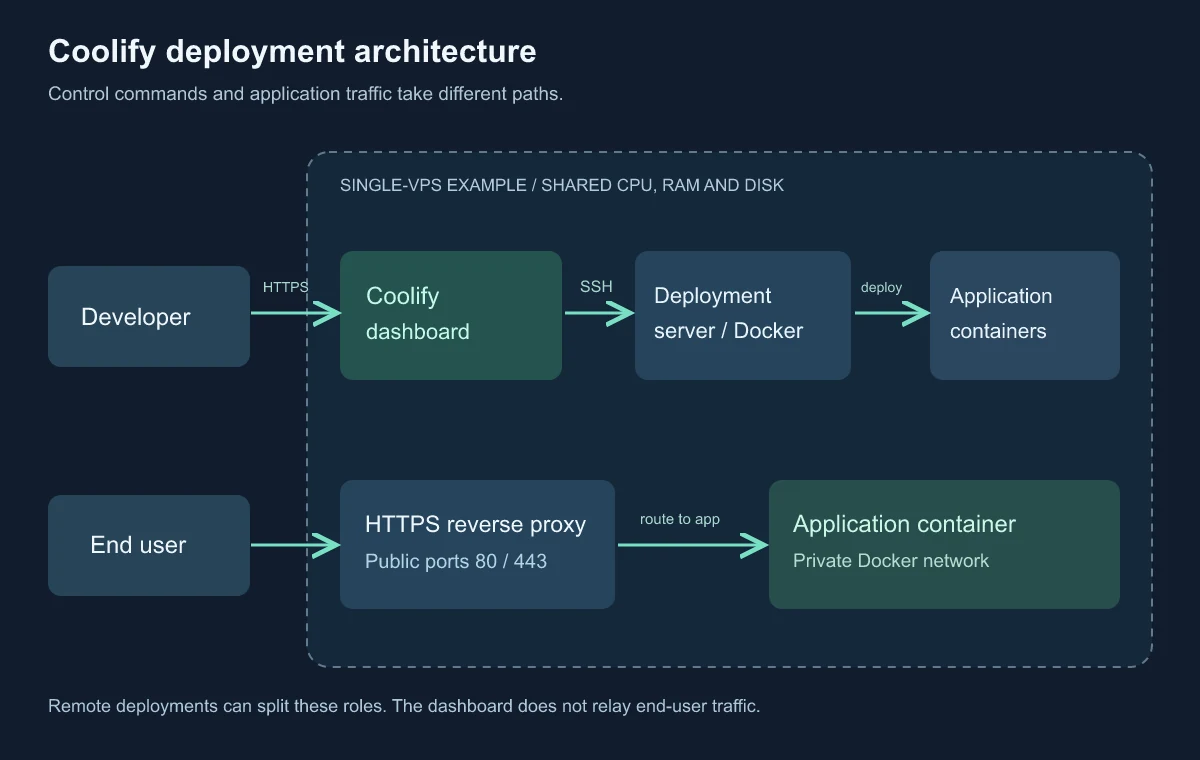
Coolify coordinates deployments through SSH and Docker. Its web dashboard stores configuration and initiates operations; containers on your selected server run the actual applications and databases. You can deploy from Git or use prebuilt images.
An HTTP request reaches the reverse proxy on the deployment server, then the application container. It does not travel through a separate dashboard server. A single VPS can host both roles, but then everything shares CPU, memory, storage, and the same failure domain.
You still maintain Linux, protect secrets, and recover data. Our Vercel alternatives overview provides context for other deployment approaches.
Coolify VPS Requirements
Minimum Server Requirements
The self-hosted guide lists 2 cores, 2 GB RAM, 10 GB free disk, and amd64 or arm64. It supports Linux distributions including Debian, Ubuntu, Red Hat derivatives, SUSE, Arch, and Alpine. Use an Ubuntu LTS image for the automated path below; check every application image before choosing ARM.
Disk guidance has two thresholds: the basic page lists 10 GB free, while the installation troubleshooting guide specifies 30 GB total and 20 GB available. The current installer checks those higher disk values and warns when they are not met. Plan for the higher installation allowance plus workload growth.
Recommended VPS for Small Projects
| Workload | CPU | RAM | Disk planning |
|---|---|---|---|
| Official platform baseline | 2 cores | 2 GB | 10 GB free; also satisfy the installer disk checks above |
| Small projects | 2 vCPU | 4 GB | Around 40 GB SSD or more |
| Small production workloads | 4 vCPU | 8 GB | Around 80 GB SSD or more |
| Multiple applications and databases | 4–8 vCPU | 16 GB | Around 100 GB SSD or more |
Rows above the baseline are editorial planning suggestions, not official production guarantees. Allow space for image layers, logs, upgrades, and temporary backups.
VPS Requirements for Production
An 8 GB VM is a starting point. Measure memory peaks, database working sets, traffic, and deployment overlap. Define recovery objectives and test restores. Consider separating databases or builds before enlarging one VM.
CPU, RAM and Storage Planning
Builds run on the deployment server by default. A dependency installation or compilation can compete with live requests and database memory. Coolify's build server role moves image construction to another machine, pushes the result to a registry, and lets the deployment server pull it. That role cannot host application resources; use a compatible architecture and include registry charges.
Track disk growth as well as RAM. Persistent volumes survive container replacement, but they remain on the relevant server and are not backups. Configure explicit mounts for uploads and database data using the persistent storage guide.
Does Coolify Need a Dedicated Server?
No. A normal Linux VPS with the necessary access can work. Shared CPU is worth evaluating for intermittent workloads; dedicated CPU becomes relevant when sustained activity or contention makes execution unpredictable. Dedicated cores do not provide failover or backups.
6 Best VPS Hosting Providers for Coolify in 2026
All six offer Linux virtual servers suitable for evaluating self-managed Docker deployment. Compatibility is based on documentation, not installations tested on each provider.
1. LightNode – For Flexible Hourly Billing
LightNode hourly VPS (affiliate link; we may earn a commission) is useful for developers testing Docker projects or choosing a deployment region before committing to longer use.
Agency provides 2 vCPU, 4 GB RAM, 50 GB NVMe, and 2 TB transfer at a $14.70 displayed monthly equivalent. Premium provides 4 vCPU, 8 GB, 50 GB NVMe, and 3 TB at $27.70 equivalent. Its advertised entry hourly rate is $0.012, but that is not a verified Agency hourly quote; do not derive one by dividing the displayed equivalent.
Root access and Linux support allow a normal Coolify installation. The provider advertises 40+ locations, including Frankfurt, Singapore, and Washington. Its dedicated-IP page lists static dedicated addresses; confirm selected-plan inclusion and retention. Exact port speed, backup costs, and retained-resource charges need an order-specific check.
The appeal is flexible billing and regional choice. The limitation is self-management, plus 50 GB storage even on the listed 8 GB plan. That falls below our 80 GB production planning example. Assess storage expansion or another plan before hosting several databases. No Coolify-specific image was verified.
2. Hetzner – For European Infrastructure Planning
CPX22 specifies 2 vCPU, 4 GB RAM, and 80 GB NVMe. The published Germany/Finland reference is €19.49/month excluding VAT and IPv4; Primary IPv4 adds €0.50/month. Some shared offers are marked unavailable, so confirm stock and the live order total.
Linux images include Ubuntu. EU instances include at least 20 TB transfer; US and Singapore allocations differ. Locations span Germany, Finland, the US, and Singapore, with model availability varying. Backups add 20% of the server price; snapshots and volumes are separate.
It is useful for administrators evaluating EU deployment costs and infrastructure automation. Availability and add-ons weaken any blanket “cheapest” claim. Compare available machines using our Hetzner alternatives guide.
3. DigitalOcean – For Learning Cloud Operations
The Regular Basic 4 GiB/two-vCPU Droplet costs $24/month, with 80 GiB SSD and 4,000 GiB transfer. Its bundled plan includes public IPv4. The 8 GiB/four-vCPU example is $48 with 160 GiB storage.
Droplets are Linux VMs. Regional availability includes New York, Frankfurt, Singapore, and other regions; check the exact configuration. Per-second billing has a minimum of 60 seconds or $0.01, whichever is greater. Weekly percentage-based backups add 20%; daily add 30%, with usage-based alternatives also available.
The clear resource ladder helps beginners calculate costs; administration and add-ons remain your responsibility. See our DigitalOcean alternatives comparison if the total exceeds your budget.
4. Vultr – For Regional VPS Options
The official API lists vc2-2c-4gb: two vCPU, 4 GB RAM, 80 GB SSD, 3,072 GB bandwidth, $20/month or $0.027/hour base. São Paulo is $30/month or $0.041/hour. Locations include Frankfurt, London, Singapore, Tokyo, and US sites; the API is not a guarantee of immediate inventory.
Ubuntu is documented for Cloud Compute deployment. Check the selected instance's default IPv4 and any additional address charges at checkout. Automatic backups are an optional surcharge; block storage needs separate protection.
Regional options help place applications near users, but change pricing. Compare compute families against your measured workload. Stopping an instance does not end its server charges.
5. Akamai Cloud – For General-Purpose Linux Hosting
Linode 4 GB lists two CPU, 80 GB SSD, 4 TB transfer, and $24/month; Linode 8 GB lists four CPU, 160 GB, and $48. The published 4 GB network allowance is 40 Gbps inbound/4 Gbps outbound, not measured application throughput.
Shared CPU instances are offered in core regions. Select an available core location and an Ubuntu image; the creation guide includes an automatically assigned public IPv4 at no extra cost. Backups and extra storage are separate services; verify regional rates.
The upgrade tiers suit conventional Linux operations. Separate busy databases or builds when needed. Idle machines and optional infrastructure remain billable.
6. Contabo – For Comparing Larger RAM Configurations
The current price table lists Cloud VPS Plus 4: four shared vCPU, 8 GB RAM, 150 GB NVMe, and a 500 Mbit/s port. Transfer is advertised as unlimited with fair-use conditions; it is not unlimited sustained throughput.
Check current pricing. Localized promotional displays do not provide a dependable universal USD checkout total. Confirm currency, term, renewal, region, tax, and any setup fee. The VPS documentation lists Linux image options, a static IPv4, and an optional Auto Backup service for the applicable families. Regions include Europe, the UK, the US, and Asian locations; order-time availability controls selection.
The memory/disk combination suits capacity comparisons, but shared cores and contract totals need examination. Select Linux with Docker; RAM alone does not establish database performance.
How to Install Coolify on an Ubuntu VPS
Prepare the host and network
Use a fresh Ubuntu 24.04 LTS VPS, SSH keys, a provider console for recovery, and the capacity planned above. Our Ubuntu VPS buying guide covers infrastructure selection. Run these commands on the new server:
ssh root@YOUR_VPS_IP
cat /etc/os-release
uname -m
nproc
free -h
df -h / /var
ss -lntup
apt-get update
apt-get upgrade
apt-get install -y curl ca-certificates
Review upgrades and reboot if required before installation. Check Docker's data filesystem too if it is mounted separately. Ensure ports 80, 443, 8000, 6001, and 6002 are not occupied by another stack.
Use the provider firewall for this policy, including IPv6 when enabled:
- SSH, usually TCP 22: allow your admin source and the SSH paths Coolify needs. Its localhost connection must remain reachable; remote deployment servers need access from the control server.
- TCP 80/443: allow public web traffic and certificate validation.
- TCP 8000, 6001, 6002: initially allow only your trusted admin source, for dashboard, realtime updates, and terminal access. Do not leave them open globally.
- Keep database ports private unless a deliberate, protected external connection is required.
The firewall guide explains why Docker-published ports need special attention; ordinary UFW rules alone may not constrain them. Verify rules from outside the server and keep your existing SSH session open.
Install and claim the dashboard
Download and inspect the official script on the VPS, then run it as root:
curl -fsSL https://cdn.coollabs.io/coolify/install.sh -o /root/coolify-install.sh
less /root/coolify-install.sh
bash /root/coolify-install.sh
docker --version
docker compose version
systemctl is-active docker
docker ps -a --filter name=coolify
This is equivalent to the official curl -fsSL https://cdn.coollabs.io/coolify/install.sh | bash command. Only execute a trusted installer on a server you intend it to manage. The current script requires Docker Engine 24+, installs Engine/Compose components where needed, and rejects Snap Docker. Use the Compose plugin, docker compose; do not assume an old standalone binary is sufficient.
Follow the printed dashboard address, normally http://YOUR_VPS_IP:8000, from your allowed admin address. Create the first administrator immediately: someone who reaches unclaimed registration first can gain control. For initial credentials over an encrypted path, keep the public admin ports restricted and forward them through SSH:
# Run on your own computer; keep this session open.
ssh -N -L 8000:127.0.0.1:8000 \
  -L 6001:127.0.0.1:6001 -L 6002:127.0.0.1:6002 root@YOUR_VPS_IP
Open http://127.0.0.1:8000 for initial registration. Verify realtime/terminal behavior after enabling HTTPS; retain provider firewall restrictions.
Configure HTTPS, persistence, and recovery
Point coolify.example.com at the VPS. Remove stale AAAA records if IPv6 is not configured. In Settings > General > URL, enter https://coolify.example.com, select Save changes, and ensure the server's proxy is running. Verify the certificate and sign in through that URL before closing public 8000/6001/6002 access. The proxy then carries dashboard features through 80/443. Confirm SSH server validation still succeeds.
Back up /data/coolify/source/.env securely; it includes APP_KEY, needed to decrypt saved values. Never put it in Git or support logs. In Settings > Backup, configure the instance backup, schedule it, and keep an off-server copy plus SSH key recovery material.
Instance backups do not include application databases, uploads, or volumes. Configure their own persistent mounts and backup schedules. Test restoration on an isolated server with the matching encryption key; a replacement instance has other secrets that must remain consistent with its new containers. Use Settings > Updates to review update settings. Back up first; a container image rollback may not reverse database migrations.
How to Deploy Your First Application with Coolify
Use the official Nginx first-app flow to test routing without compiling code:
- Open Servers, select localhost, and confirm it is reachable and validated. Check the proxy status; select Start Proxy if stopped.
- Select New Project, name it, and continue. Open the project and choose Create New Resource > Docker Image; select the server/destination when prompted.
- Enter image
nginx, tagalpine, and Ports Exposes: 80. This is the container port, not a request to replace the host proxy's port mapping. - For a quick routing check, use the generated HTTP
sslip.ioURL. For HTTPS, pointdemo.example.comto the VPS and usehttps://demo.example.comin the resource's domain field. Save the configuration. - Select Deploy. Review the deployment output and runtime logs, then open the application URL and confirm the Nginx welcome page. Check HTTPS separately.
nginx:alpine is a convenient test tag; pin a reviewed version/digest for an application you intend to maintain. This disposable example needs no persistence. Real uploads and databases require persistent storage. For an automation workload, our n8n VPS guide discusses database and recovery costs.
Coolify Hosting Costs Explained
Monthly estimates below are planning examples, not customer invoices. They assume USD base-region pricing, one self-hosted control plane on a workload VPS, no extra IPv4 charge for the selected configuration, included transfer, and no paid monitoring. “Reserve” is an editorial budget for offsite backups/storage, not a quoted vendor product. Tax, labor, domains, paid APIs, transfer overages, and managed databases are excluded.
| Scenario | Compute assumption | Backup/storage reserve | Estimated monthly infrastructure | With Coolify Cloud instead |
|---|---|---|---|---|
| A: Personal developer projects | LightNode Agency $14.70 equivalent; 2 vCPU/4 GB | $5 | $19.70 equivalent | $24.70 equivalent |
| B: Small SaaS application | Vultr base-region 4 vCPU/8 GB/160 GB at $40 | $10 | $50 | $55 |
| C: Several apps and databases | DO Regular 8 vCPU/16 GiB/320 GiB $96; optional separate 2 vCPU/4 GiB build host $24 | $20 | $116 without builder; $140 with it | $121 or $145; up to two connected servers |
Scenario B needs monitoring and deployment headroom. Scenario C separates builds without creating runtime redundancy. Managed databases, runtime nodes, registry storage, and paid monitoring cost extra.
Compare VPS + IPv4 + storage + backups + excess transfer + database services + monitoring + build capacity + operations time. A $5 backup reserve is not a recovery guarantee; estimate retained bytes and egress before choosing storage.
Coolify Cloud vs Self-Hosted Coolify
The official pricing page lists self-hosting as free and Cloud at $5/month including two server slots, plus $3/month for each additional slot, using monthly billing. These fees do not include your VPS. Three connected servers mean $8/month for the control plane, plus all three server bills.
With self-hosting, you control and maintain the dashboard instance, its secrets, backups, and updates. Cloud maintains that control plane and its backups; you still handle connected-server patching, application/database data, and workload recovery. See the official Cloud responsibility model before treating it as managed application hosting.
Can You Run Coolify on a Cheap VPS?
A 1 GB machine may start under constrained conditions, but it falls below the documented baseline. Two GB meets that memory baseline, leaving little room for applications and builds. Four GB is a more useful small-project starting point because the host, control plane, proxy, database, and build tools all consume memory.
“Can start,” “recommended for this workload,” and “production-ready” are different assessments. Upgrade when memory peaks exhaust headroom, disk growth threatens updates, or deployments affect requests. External builds or a separate database may help.
Common Coolify Problems and Fixes
Start with read-only diagnostics. Inspect logs locally and redact secrets before sharing them.
| Symptom | First diagnostic direction |
|---|---|
| Dashboard does not load | docker ps -a --filter name=coolify; docker logs --tail=100 coolify; compare direct/tunneled access with the domain |
| Port 8000 inaccessible | ss -lntp; check provider firewall, source address, published container ports, and whether another process owns 8000 |
| Docker installation error | systemctl status docker --no-pager; inspect installation logs under /data/coolify/source/; check supported OS and Snap conflicts |
| SSH validation fails | Verify host/user/port and the selected key's public half in authorized_keys; inspect journalctl -u ssh --since '1 hour ago' |
| Out of memory | free -h; docker stats --no-stream; journalctl -k --since '1 hour ago'; correlate OOM events with builds |
| Deployment stuck | Read deployment output, check queue/container health and registry access; distinguish image pulling, building, and health checks |
| Disk full | df -h; df -i; docker system df; identify retained images, logs and volumes before deciding what is safe to remove |
| SSL certificate error | Verify A/AAAA records, inbound 80/443, proxy logs, and domain configuration; test without a conflicting upstream proxy |
| Reverse proxy conflict | ss -lntp; check existing Nginx/Apache/Traefik listeners; assign one deliberate owner of public 80/443 |
| Build failure | Inspect the first meaningful build error, architecture, dependencies, context paths, and memory peaks; try a prebuilt image to isolate runtime issues |
| Database connection fails | Check internal hostname/network, credentials and readiness; use the container's listening port, not an unnecessary public mapping |
Avoid blanket volume deletion or installation resets. Diagnose the failed layer using the installation troubleshooting guide.
Which VPS Is Best for Coolify?
For the lowest verified displayed USD cost among the matched small-project examples, LightNode Agency is $14.70 equivalent; unresolved quotes prevent a universal cheapest claim. Hourly flexibility also makes it useful for trial projects, subject to the actual billing terms.
Beginners can evaluate DigitalOcean's documented infrastructure; Akamai offers another clear Linux resource ladder. For a small SaaS, compare an 8 GB Vultr or similar VM against your build and recovery needs. Hetzner is relevant where an available EU configuration and total price fit. For multiple apps or database-heavy work, investigate Contabo's larger storage/RAM alongside shared-CPU behavior and contract terms, or separate services across suitable machines.
Confirm capacity, location, IP charges, and backups before purchase. Then test the workload and a restore.
Frequently Asked Questions
What is the best VPS for Coolify?
Choose a compatible Linux VPS with sufficient workload headroom and clear total pricing. The six examples above serve different regional, billing, and capacity needs.
How much RAM does Coolify need?
The documented baseline is 2 GB. Apps, databases, and builds need additional memory; our 4/8/16 GB ranges are planning suggestions.
Can Coolify run on a 1GB VPS?
It may start, but it is below the documented baseline and is not the recommended deployment in this guide.
Is 2GB RAM enough for Coolify?
For the platform baseline, yes. Whether a useful application stack fits depends on its memory peaks and build strategy.
Is Coolify free to self-host?
Yes, the self-hosted software has no subscription charge. Infrastructure, backups, and maintenance still cost money or time.
Does Coolify require Docker?
Yes. It uses Docker Engine and Compose for deployment. The checked installer requires Engine 24 or newer.
Can I install Coolify on Ubuntu?
Yes. Use a supported LTS release; this tutorial selects a fresh Ubuntu 24.04 LTS server.
Can Coolify host multiple applications?
Yes, within available server resources. Multiple resources on one VPS share capacity and a failure domain.
What is the difference between Coolify Cloud and self-hosted?
Cloud operates the control plane. Self-hosting makes that your responsibility. Both deploy workloads to servers you provide.
How much does Coolify hosting cost per month?
Our personal-project example totals $19.70 equivalent with an assumed $5 backup reserve. Larger examples cost more; Cloud adds a separate control-plane fee.