
Best VPS for Docmost in 2026: Requirements & Hosting Costs
The best VPS for Docmost is not necessarily the server with the largest advertised CPU count. Docmost runs as an application alongside PostgreSQL and Redis, so a useful starting point needs enough memory for all three services, SSD capacity for attachments, and a backup plan that lives outside the VPS. For most small teams, that means 2 vCPU and 4GB RAM; a personal wiki can begin with 2GB if its limits are understood.
This guide compares six VPS providers using publicly listed prices, separates Docmost's free open-source edition from paid licenses, and provides a complete Docker Compose deployment. The sizing figures below are editorial recommendations—not official Docmost minimums—and should be adjusted after monitoring your own users, pages, imports, and attachments.
Source check: Docmost documentation, its current GitHub Compose file, and provider catalogs were reviewed on November 19, 2026. Prices exclude taxes unless the provider says otherwise and can vary by region, currency, inventory, IPv4, term, or promotion. These are published specifications, not purchased-server benchmarks.
What Is Docmost?
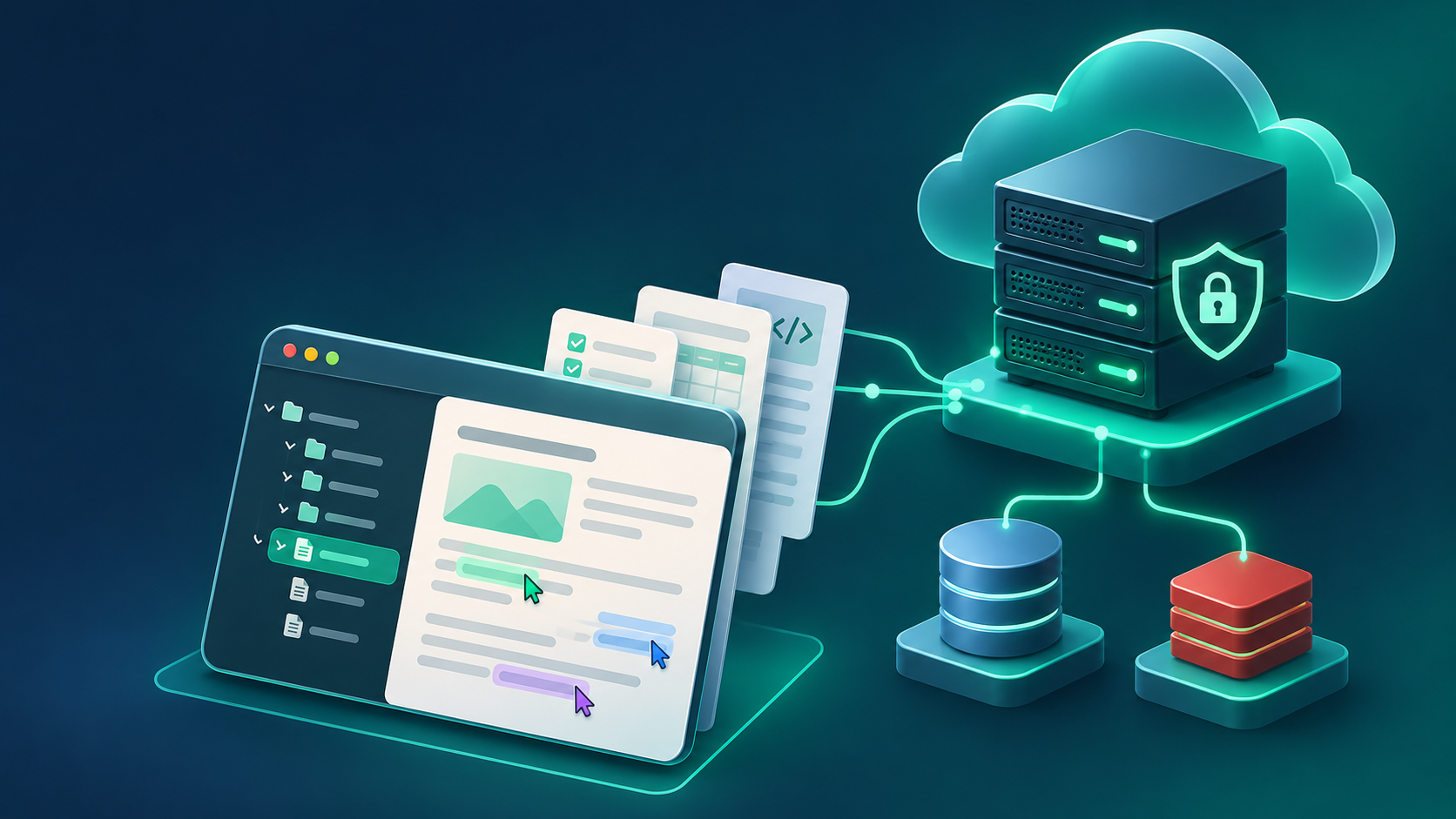
Docmost is a self-hosted collaborative wiki and knowledge base. Teams can organize documentation into spaces, edit pages together in real time, comment, search content, and control who can access a space. It occupies a similar category to Notion and Confluence, but its defining value is deployment on infrastructure you control. That can simplify data-residency decisions and makes offline or air-gapped operation possible, while also making your team responsible for security, updates, and recovery.
The free Open Source edition is licensed under AGPL-3.0 and includes core documentation and collaboration features. Do not assume every feature shown on the Docmost website is free. According to the current edition documentation and pricing comparison, Business adds capabilities such as SSO, AI, granular page permissions, Confluence import, MFA, API management, and attachment indexing; Enterprise adds governance and security controls such as SCIM, audit logs, and SIEM. A commercial license is separate from the VPS bill.
Compared with Notion, self-hosted Docmost trades a vendor-operated SaaS service for infrastructure control and maintenance. Compared with Confluence, it offers an open-source starting point and a lighter self-hosting path, but it is not a drop-in replacement for every Atlassian integration or enterprise workflow. Evaluate the exact edition matrix before planning a migration.
Docmost VPS Hosting Requirements
Docmost's official installation guide requires Docker and uses a three-service stack: the Docmost application, PostgreSQL, and Redis. The project does not publish one universal minimum CPU or RAM figure that guarantees every workload. The table below is therefore a practical editorial baseline for a single-server deployment.
| Workload | CPU | RAM | Initial SSD | Recommended use |
|---|---|---|---|---|
| Small personal wiki | 1 vCPU | 2GB | 30–50GB | A few users, light attachments, careful monitoring |
| Small team | 2 vCPU | 4GB | 50–80GB | Routine editing, imports, and local PostgreSQL/Redis |
| Growing team | 4 vCPU | 8GB | 100GB+ | More concurrent editors, attachments, and operational headroom |
| Production deployment | 4+ vCPU | 8GB+ | Sized from measured data | Monitoring, offsite backups, tested restores, and capacity planning |
CPU, RAM, Storage, and Software
| Component | Practical requirement |
|---|---|
| CPU cores | 1 vCPU for light personal use; 2 vCPU is a safer small-team starting point; use 4+ when concurrency or imports grow |
| RAM | 2GB minimum editorial starting point for the complete small stack; 4GB preferred for a team; 8GB for growth |
| SSD storage | Begin around 30–50GB, then budget for uploads, database growth, images, logs, container layers, and update headroom |
| Operating system | A supported 64-bit Linux distribution; this guide uses Ubuntu 24.04 LTS |
| Containers | Current Docker Engine and the Docker Compose plugin |
| Database | PostgreSQL; the current upstream Compose file uses postgres:18 |
| Cache/queue | Redis; the current upstream Compose file uses redis:8 with append-only persistence and noeviction |
| Network | Public HTTPS, private container networking for PostgreSQL and Redis, and enough transfer for attachments and backups |
Is 1GB, 2GB, 4GB, or 8GB RAM Enough?
1GB RAM is a poor default for the full stack. Linux, Docker, Docmost, PostgreSQL, and Redis all share it. A container may start, but an import or concurrent editing can trigger swapping or an out-of-memory kill. It is suitable only for controlled experimentation where failure is acceptable.
2GB RAM can support a small personal wiki. Keep other services off the host, limit large imports, watch memory, and keep a recovery copy. It is the lowest configuration this guide treats as a realistic persistent deployment.
4GB RAM is the balanced small-team choice. It leaves more cache and query headroom for PostgreSQL while reducing the chance that an application spike competes immediately with Redis and the operating system. It is still not a performance guarantee.
8GB RAM suits a growing team or busier production deployment. It allows more breathing room for concurrent work, database caching, attachments, and monitoring. Paid features such as AI or Typesense can introduce separate services or external dependencies; size those from their own documentation rather than assuming 8GB covers everything.
How Much Does Docmost Hosting Cost in 2026?
A small Docmost VPS usually falls between roughly $8 and $25 per month for 2–4GB RAM in the providers compared here. An 8GB general-purpose VM can range from a low promotional or region-specific price to about $48 per month. The cheapest catalog number is not automatically the cheapest reliable deployment once backups, IPv4, taxes, storage, and administrator time are included.
| Configuration | Typical role | Verified examples | Monthly infrastructure budget |
|---|---|---|---|
| 1 vCPU / 2GB | Personal wiki | LightNode $7.71; DigitalOcean $12; Akamai Cloud $12 | About $8–$12 before backups/tax |
| 2 vCPU / 4GB | Small team | LightNode $14.70; DigitalOcean $24; Akamai Cloud $24 | About $15–$24 before backups/tax |
| 4 vCPU / 8GB | Growing deployment | LightNode $27.70; DigitalOcean $48; Akamai Cloud $48 | About $28–$48 before backups/tax |
CPU family and contention affect real work even when vCPU counts match. SSD capacity matters because the database and uploaded files grow independently. Transfer allowances affect remote backups and large attachments. A region near users can improve latency but may have a different catalog. Provider snapshots are convenient, yet they are not a substitute for an independently stored PostgreSQL dump and attachment backup.
Docmost Community is free to license, but the server is not free to operate. The current self-managed Business price is $6 per seat per month billed annually with a 10-seat minimum; Enterprise is quoted. Those software fees, if needed, are added to infrastructure rather than replacing it.
Best VPS Providers for Docmost in 2026
The following providers offer self-managed Linux VMs. None of them removes your responsibility for Docmost updates, Docker, database maintenance, backups, or incident response.
| Provider | Example configuration | Storage / transfer | Verified price | Best fit |
|---|---|---|---|---|
| LightNode | 1 vCPU / 2GB | 50GB NVMe / 1TB | $7.71 monthly reference | Many regions and hourly billing |
| Vultr | Choose 2–4GB at checkout | Varies by compute family and region | Current quote required | Comparing compute families and locations |
| DigitalOcean | 1 vCPU / 2GiB | 50GiB SSD / 2,000GiB | $12/month | Clear, documented plan ladder |
| Akamai Cloud (Linode) | 1 CPU / 2GB | 50GB / 2TB | $12/month | Predictable shared-CPU tiers |
| Contabo | 4 vCPU / 8GB | 100GB SSD / advertised unlimited traffic* | Localized quote required | Larger RAM/storage bundles |
| Hetzner | CX23: 2 vCPU / 4GB | 40GB / 20TB in EU | €5.49/month plus VAT/IPv4 reference | Cost-focused EU deployments |
1. LightNode: Flexible Billing Across Many Regions

LightNode advertises KVM virtual machines, NVMe SSD storage, hourly billing, and more than 40 locations. Its Start configuration lists 1 vCPU, 2GB RAM, 50GB storage, and 1TB transfer for a $7.71 monthly reference; the hourly equivalent is about $0.021 based on its 672-hour monthly cap. Agency lists 2 vCPU/4GB/50GB and 2TB at $14.70; Premium lists 4 vCPU/8GB/50GB and 3TB at $27.70. Confirm the chosen location because inventory and network terms can vary.
For Docmost, Start is reasonable for a personal wiki, Agency is the better small-team baseline, and Premium adds memory without adding included disk. Hourly billing is billing flexibility—not a free trial—and stopped instances can remain billable under the provider's published rules.
Pros: 40+ advertised locations; KVM; NVMe storage; hourly and monthly references; useful 2GB, 4GB, and 8GB steps.
Cons: Cryptocurrency payments are not currently supported.
Best for: Teams prioritizing regional choice and flexible billing.
2. Vultr: Multiple Compute Families and Locations

Vultr offers regular Cloud Compute alongside higher-frequency and higher-performance variants, with storage and transfer depending on the selected family and region. That flexibility is useful when a database-backed application outgrows an entry VM. Its official overview publishes a $0.005/hour infrastructure floor for a 0.5GB instance, but that plan is too small for Docmost and a current 2–4GB price was not reliably exposed in the public source check. Obtain the live regional quote rather than relying on an old price table.
Pros: Broad infrastructure selection; many regions; hourly billing.
Cons: Exact suitable-plan pricing needs a checkout quote; a stopped server continues billing until destroyed.
Best for: Operators who want to compare compute and storage families.
3. DigitalOcean: A Clear General-Purpose Plan Ladder

DigitalOcean Basic Droplets list 1 vCPU/2GiB/50GiB SSD/2,000GiB transfer at $12 per month, 2 vCPU/4GiB/80GiB at $24, and 4 vCPU/8GiB/160GiB at $48. Billing changed to per-second in 2026, with monthly caps and a stated minimum. The 4GiB tier is the practical small-team choice in this guide.
Pros: Transparent resource table; documented networking and backup options; simple upgrades.
Cons: Backups and extra storage add cost; the $4 entry Droplet is far too small for this stack.
Best for: First-time cloud operators who value extensive documentation.
4. Akamai Cloud (Linode): Predictable Shared-CPU Plans

Akamai Cloud's shared-CPU catalog lists Linode 2GB with 1 CPU, 50GB storage, and 2TB transfer for $12 per month. Linode 4GB provides 2 CPUs, 80GB, and 4TB for $24; Linode 8GB provides 4 CPUs, 160GB, and 5TB for $48. The 4GB plan is the straightforward small-team configuration.
Pros: Published monthly/hourly rates; clear resource ladder; conventional Linux VM administration.
Cons: Extra services increase the bill; shared CPU does not promise consistent dedicated-core performance.
Best for: Developers wanting predictable monthly caps and familiar VM sizing.
5. Contabo: Larger Bundles, but Verify the Contract

Contabo's current localized pricing table lists Cloud VPS 4 with 4 vCPU, 8GB RAM, 100GB SSD, a 200Mbit/s port, and advertised unlimited traffic subject to its fair-use terms. The displayed price and currency are localization-dependent, and promotions or setup fees can depend on term and region, so this guide does not convert the partially rendered catalog into a universal dollar claim.
Pros: High RAM and storage allocations on entry bundles; multiple VPS families.
Cons: Final price, tax, setup fee, term, and location require careful checkout verification.
Best for: Buyers prioritizing capacity and willing to review the complete contract.
6. Hetzner: Cost-Focused European Infrastructure

Hetzner's June 2026 adjustment lists the shared-resource CX23 in Germany/Finland at 2 vCPU, 4GB RAM, 40GB disk, and €5.49 per month, excluding VAT and IPv4. Its US-dollar reference is $6.49. Availability has varied, so verify that the SKU is orderable. EU transfer allowances and regional prices differ from other locations.
Pros: Competitive published EU reference; hourly billing with a monthly cap; optional volumes.
Cons: IPv4, VAT, backups, and volumes add cost; availability and regional catalogs differ.
Best for: EU-focused users who confirm current inventory and total price.
How to Install Docmost on a VPS Using Docker
This procedure follows the current Docmost installation guide and upstream Compose file. It uses Ubuntu 24.04 LTS, PostgreSQL 18, Redis 8, persistent volumes, and Caddy for HTTPS. Review upstream changes before copying it months later.
Step 1: Choose a VPS and Install Ubuntu
Create an Ubuntu 24.04 LTS server with at least 2GB RAM; choose 4GB for a small team. Add an SSH key during provisioning. At the provider firewall, allow TCP 22 from trusted addresses and TCP 80/443 publicly. Do not open ports 5432 or 6379.
Step 2: Connect to Your VPS Using SSH
ssh ubuntu@YOUR_SERVER_IPUse the account supplied by the provider. Create a non-root sudo user if the image only provides root access.
Step 3: Update the Operating System
sudo apt update
sudo apt upgrade -y
sudo apt install -y ca-certificates curl openssl
Reboot if the upgrade installs a new kernel, then reconnect.
Step 4: Install Docker Engine and Docker Compose
Use Docker's official Ubuntu repository rather than an unverified convenience script:
sudo install -m 0755 -d /etc/apt/keyrings
sudo curl -fsSL https://download.docker.com/linux/ubuntu/gpg -o /etc/apt/keyrings/docker.asc
sudo chmod a+r /etc/apt/keyrings/docker.asc
sudo tee /etc/apt/sources.list.d/docker.sources > /dev/null <<EOF
Types: deb
URIs: https://download.docker.com/linux/ubuntu
Suites: $(. /etc/os-release && echo "${UBUNTU_CODENAME:-$VERSION_CODENAME}")
Components: stable
Architectures: $(dpkg --print-architecture)
Signed-By: /etc/apt/keyrings/docker.asc
EOF
sudo apt update
sudo apt install -y docker-ce docker-ce-cli containerd.io docker-buildx-plugin docker-compose-plugin
sudo docker compose version
Step 5: Create the Docmost Project Directory
sudo mkdir -p /opt/docmost
sudo chown "$USER":"$USER" /opt/docmost
cd /opt/docmost
umask 077
Step 6: Configure Docker Compose
Save the following as /opt/docmost/compose.yaml. PostgreSQL and Redis have no host ports, so they remain private on the Compose network. Caddy is the only public application entry point.
services:
  docmost:
    image: docmost/docmost:latest
    restart: unless-stopped
    depends_on:
      - db
      - redis
    environment:
      APP_URL: ${APP_URL:?Set APP_URL}
      APP_SECRET: ${APP_SECRET:?Set APP_SECRET}
      DATABASE_URL: postgresql://docmost:${POSTGRES_PASSWORD}@db:5432/docmost
      REDIS_URL: redis://redis:6379
    volumes:
      - docmost_data:/app/data/storage

  db:
    image: postgres:18
    restart: unless-stopped
    environment:
      POSTGRES_DB: docmost
      POSTGRES_USER: docmost
      POSTGRES_PASSWORD: ${POSTGRES_PASSWORD:?Set POSTGRES_PASSWORD}
    volumes:
      - db_data:/var/lib/postgresql

  redis:
    image: redis:8
    restart: unless-stopped
    command: ["redis-server", "--appendonly", "yes", "--maxmemory-policy", "noeviction"]
    volumes:
      - redis_data:/data

  caddy:
    image: caddy:2
    restart: unless-stopped
    depends_on:
      - docmost
    ports:
      - "80:80"
      - "443:443"
      - "443:443/udp"
    volumes:
      - ./Caddyfile:/etc/caddy/Caddyfile:ro
      - caddy_data:/data
      - caddy_config:/config

volumes:
  docmost_data:
  db_data:
  redis_data:
  caddy_data:
  caddy_config:
For a production team, replace latest with a reviewed release tag and plan upgrades deliberately. The upstream file currently uses latest; a floating tag can change during a pull.
Step 7: Set APP_SECRET and Database Credentials
Generate two different secrets:
openssl rand -hex 32
openssl rand -hex 32
Create .env, inserting the outputs without quotes or spaces:
APP_URL=https://docs.example.com
APP_SECRET=REPLACE_WITH_FIRST_RANDOM_VALUE
POSTGRES_PASSWORD=REPLACE_WITH_SECOND_RANDOM_VALUE
chmod 600 .envKeep APP_SECRET stable and store it with your recovery material. Do not commit .env. The database password must be URL-safe because it is interpolated into DATABASE_URL; hexadecimal output meets that requirement.
Step 8: Start the Containers
sudo docker compose config
sudo docker compose pull
sudo docker compose up -d
sudo docker compose ps
sudo docker compose logs --tail=100 docmost
docker compose config should render without missing-variable errors. If Docmost restarts repeatedly, inspect db and redis logs as well. Do not paste secrets into a public support issue.
Step 9: Configure a Domain and HTTPS
Create an A record for docs.example.com pointing to the VPS IPv4 address, and an AAAA record only if IPv6 is correctly configured. Save this as Caddyfile:
docs.example.com {
    encode zstd gzip
    reverse_proxy docmost:3000
}
Ensure APP_URL uses the same https://docs.example.com origin, then apply the change:
sudo docker compose up -d
sudo docker compose logs --tail=100 caddy
Caddy obtains and renews a public certificate when DNS resolves and ports 80/443 reach the server. Keep Docmost port 3000 private behind the proxy.
Step 10: Access the Docmost Web Interface
Open https://docs.example.com, create the first workspace owner, and test page creation, editing, search, and an attachment upload. Then verify the outside path and container health:
curl -I https://docs.example.com
sudo docker compose ps
sudo docker stats --no-stream
For troubleshooting, check DNS with dig +short docs.example.com, confirm the firewall, and read docker compose logs --tail=200 SERVICE. A 502 response generally means Caddy cannot reach a healthy Docmost container; a database connection error points to credentials, service startup, or the DATABASE_URL.
How to Optimize Docmost Performance on a VPS
Start with measurements. docker stats, docker compose ps, host disk alerts, and database size trends are more useful than generic tuning copied from another workload.
- RAM allocation: Leave memory for Linux and all containers. Upgrade when the host swaps persistently or records OOM kills; do not hide chronic shortage behind a large swap file.
- PostgreSQL: Keep the database on SSD, monitor connections and query load, and avoid random tuning values. Database cache will use available RAM productively.
- Redis: The official
noevictionpolicy avoids silently discarding queued data when its memory limit is reached. Monitor growth instead of imposing a tiny arbitrary cap. - Storage: Maintain free disk headroom for uploads, PostgreSQL maintenance, Docker images, logs, and upgrades. Attachments can outgrow the database.
- Containers: Pin reviewed image versions for controlled production changes, read release notes, and test upgrades against a restored copy before updating the live stack.
- Backups: Back up PostgreSQL with
pg_dump, copy the Docmost storage volume, retain.env/Compose configuration securely, and keep an encrypted copy off-server. The official backup guide explains consistency and restore requirements. - Security: Restrict SSH, use key authentication, patch the OS, expose only 80/443, protect the first admin account, and configure email securely if invitations are needed.
- Scaling: When monitoring shows resource contention, resize the VM first. Larger teams may separate PostgreSQL, use object storage, or add licensed services, but each additional component needs its own availability and backup plan.
If you also operate developer platforms, our guides to self-hosting Gitea and running Coolify on a VPS explain different database and platform overheads. Do not stack several production tools on one 4GB server without measuring their combined peaks.
Docmost vs Notion vs Confluence
| Factor | Docmost | Notion | Confluence |
|---|---|---|---|
| Self-hosting | Yes; Open Source, Business, and Enterprise editions | No conventional self-hosted edition | Confluence Data Center is self-managed; Cloud is SaaS |
| Cost model | VPS operations plus optional paid Docmost license | SaaS subscription by plan/users | Cloud subscription or Data Center licensing plus infrastructure |
| Data control | You control the deployment and storage | Vendor-operated cloud | Depends on Cloud vs Data Center |
| Collaboration | Real-time pages, spaces, comments, search; advanced features vary by edition | Mature SaaS workspace and databases | Mature wiki tied closely to Atlassian ecosystem |
| Maintenance | Your responsibility when self-hosted | Vendor handles infrastructure | Vendor for Cloud; customer for Data Center |
| Best suited to | Teams prioritizing self-hosting and open-source core | Teams wanting low infrastructure responsibility | Organizations invested in Atlassian workflows or enterprise controls |
The correct comparison includes administrator time, backup storage, and paid features—not just the VPS invoice. A $12 VM does not mean Docmost Business costs $12, and a SaaS seat price is not directly comparable to raw infrastructure.
Is a Cheap VPS Enough for Docmost?
Yes, a cheap VPS can be enough for a personal knowledge base or a small team with light attachments. A 2GB server is the practical low-end target in this guide; 4GB is safer when several people edit, search, and import content. The application does not require an expensive dedicated server merely to start.
The constraints arrive outside the headline price. Low memory can cause swapping or container termination. Shared CPU and disk I/O can vary. Small SSDs fill with uploads, logs, and database data. Backups may be optional and snapshots may live in the same provider account. A bargain server also carries the same patching, monitoring, and recovery labor as a larger one.
Use low-cost hosting when you can tolerate its resource ceiling and have a tested restore. For business-critical documentation, prioritize monitoring, offsite backups, account security, support expectations, and capacity over saving the last few dollars. Our Memos VPS guide covers a lighter note-taking workload, while Paperless-ngx hosting illustrates a more storage- and processing-heavy document stack.
Frequently Asked Questions
Can Docmost run on a 1GB RAM VPS?
It may start under very light conditions, but 1GB must accommodate Linux, Docker, Docmost, PostgreSQL, and Redis. That leaves little room for imports, concurrent work, filesystem cache, or upgrades. Treat 1GB as disposable testing capacity, not the default for a persistent team wiki.
Is 2GB RAM enough for Docmost?
Two gigabytes can support a personal wiki or a very small, lightly used team. Run only the core stack, monitor memory and swap, avoid large simultaneous imports, and keep restorable backups. Choose 4GB when the wiki matters to daily work or several users are active.
Does Docmost require PostgreSQL and Redis?
The official Docker Compose installation uses both. PostgreSQL stores application data; Redis supports caching and background/queue work. They should communicate through the private Compose network, without publishing ports 5432 or 6379 to the internet.
Can I self-host Docmost with Docker?
Yes. Docker Compose is the documented installation path and brings up the application, PostgreSQL, and Redis. A production deployment should also add a domain, HTTPS reverse proxy, persistent volumes, secure secrets, monitoring, and an offsite recovery process.
How much does Docmost hosting cost per month?
For the configurations compared here, budget roughly $8–$12 per month for a 2GB personal server and $15–$24 for a 4GB small-team server before backups, tax, or add-on storage. An 8GB VM is commonly about $28–$48 in the verified general-purpose examples. Regional and promotional prices vary.
Is Docmost free to self-host?
The Open Source edition is free under AGPL-3.0, but you still pay for infrastructure and administration. Business and Enterprise features require a commercial license. The VPS fee, backup storage, domain, and paid Docmost license are separate cost categories.
Which VPS is best for a small Docmost team?
Start with 2 vCPU and 4GB RAM. LightNode is useful when regional selection and hourly billing matter; DigitalOcean and Akamai Cloud publish simple $24 4GB tiers; Hetzner can be cost-effective in Europe if the plan is available and the total includes IPv4/VAT; Vultr and Contabo require a careful live quote. The best choice is the one whose region, backup options, support, and final price match your operating plan.
Final Verdict
For budget-conscious users, compare Hetzner's orderable EU total and Contabo's localized contract, not just the headline. For a small team, 2 vCPU/4GB is the balanced starting point. For multiple server locations, LightNode's 40+ advertised regions and hourly model are useful, while its required article link is the sponsored CTA disclosed above. For predictable published monthly billing, DigitalOcean and Akamai Cloud have clear 2GB, 4GB, and 8GB ladders. For a growing production deployment, begin with 8GB, monitoring, version-controlled configuration, and an independently tested backup rather than choosing on RAM alone.
Docmost is straightforward to deploy, but trustworthy self-hosting is an operational practice. Size the whole application–PostgreSQL–Redis stack, secure the public edge, and prove that your pages and attachments can be restored before the wiki becomes the only copy of important knowledge.