A Tutorial on How to Use ChatGPT Images 2.0 for Free
A Tutorial on How to Use ChatGPT Images 2.0 for Free
OpenAI has now rolled out ChatGPT Images 2.0 inside ChatGPT, and the important part is this:
you can use it for free.
That does not mean unlimited usage, but it does mean you no longer need a paid ChatGPT plan just to try OpenAI’s newest image generation experience.
As of April 21, 2026, OpenAI’s ChatGPT release notes say ChatGPT Images 2.0 is available on all ChatGPT plans, and the ChatGPT Help Center also says ChatGPT Images 2.0 is available on all tiers. Free users can create images in ChatGPT, but image creation has its own separate usage limits on the free tier.
In this guide, I will show you exactly how to use ChatGPT Images 2.0 for free, what the limits are, and how to get better results.
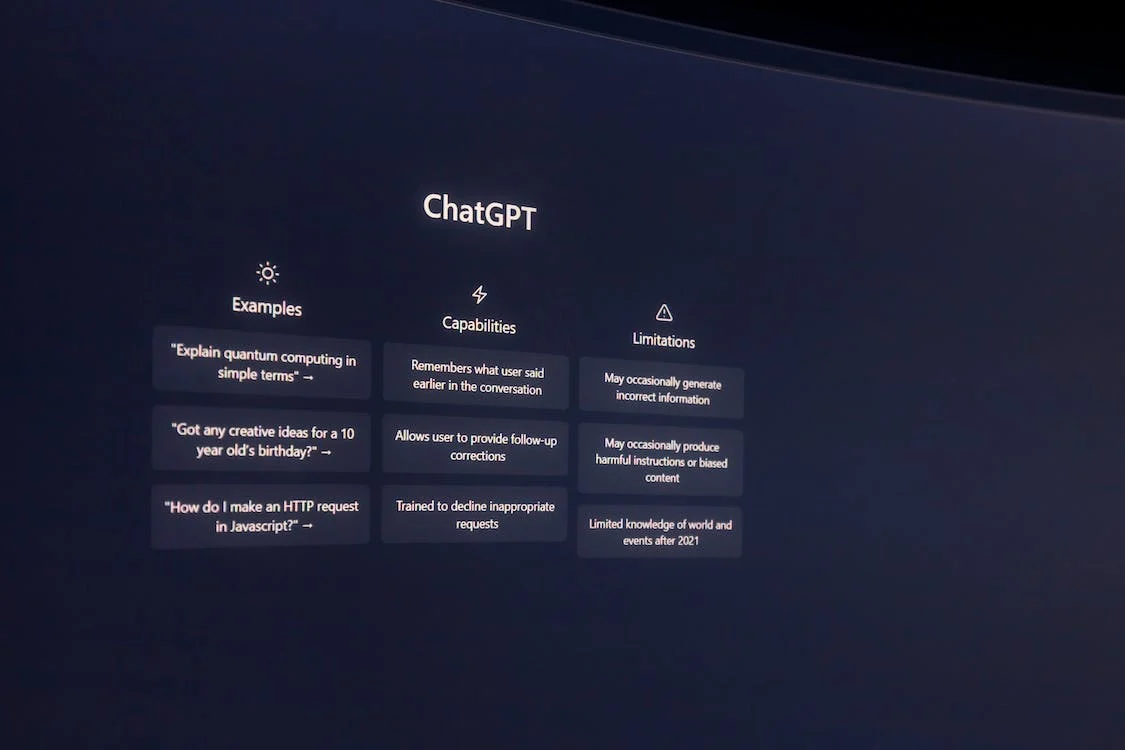
Can you really use ChatGPT Images 2.0 for free?
Yes.
According to OpenAI’s current Help Center documentation, ChatGPT Images 2.0 is available on all tiers, which includes free accounts. OpenAI’s free tier FAQ also confirms that free users can create images in ChatGPT.
The main limitation is not access. The main limitation is rate limits.
Free users can use image generation, but:
- free usage is limited
- image creation has a separate tool limit from normal text chats
- once you hit the limit, you need to wait for it to reset
So the honest answer is:
Yes, ChatGPT Images 2.0 is free to try, but not unlimited on the free plan.
What is ChatGPT Images 2.0?
ChatGPT Images 2.0 is OpenAI’s newer image generation experience built directly into ChatGPT.
It lets you:
- generate images from text prompts
- edit images you created
- upload an existing image and modify it
- create images with transparent backgrounds
- generate images in different aspect ratios
- manage saved images from your ChatGPT image library
OpenAI also introduced Images with Thinking, but that is a paid feature. As of April 27, 2026, OpenAI says Images with Thinking is available on Plus, Pro, and Business, with Enterprise and Edu support coming soon.
Where can you use ChatGPT Images 2.0?
OpenAI currently says ChatGPT Images is available on:
- Web
- iOS
- Android
That means the easiest way to use it for free is simply through your normal ChatGPT account in the browser or mobile app.
How to use ChatGPT Images 2.0 for free
Step 1: Create or log into a free ChatGPT account
Go to:
https://chatgpt.comSign in with your existing account, or create a new free ChatGPT account.
You do not need ChatGPT Plus just to test ChatGPT Images 2.0.
Step 2: Open a new chat
Once you are inside ChatGPT, start a new conversation.
You can use image generation in two common ways:
- Type a direct prompt such as:
Create an image of a small orange cat sitting in a ramen shop in Tokyo at night, cinematic lighting, detailed background.- Or open the tools menu and choose Create image or Images, depending on the interface you see.
OpenAI’s help documentation says you can either ask ChatGPT directly to create an image or use the built-in image tool from the ChatGPT interface.
Step 3: Write a clear image prompt
This part matters more than most beginners think.
A vague prompt like:
make a cool imageusually gives weaker results than a structured prompt like:
Create a realistic travel poster for Kyoto in autumn, red maple leaves, a quiet temple path, warm afternoon sunlight, elegant typography at the top saying "Kyoto in Fall", vertical poster layout.For better results, include:
- subject
- style
- setting
- lighting
- camera or composition details
- text if needed
- aspect ratio if needed
Step 4: Wait for the image to render
OpenAI says image generation can take up to two minutes, depending on how detailed the request is.
If the prompt is simple, it may finish faster. If it includes detailed text rendering, editing, or multiple objects, it may take longer.
Step 5: Edit the image if needed
One of the best parts of ChatGPT Images 2.0 is that you do not need to start over every time.
According to OpenAI’s help page, you can:
- click the generated image
- use the Select tool to highlight part of it
- describe the change you want
You can also skip the selection tool and just tell ChatGPT what to change in the conversation.
Examples:
- Make the sky more dramatic and add pink sunset clouds
- Change the shirt color to black
- Remove the chair in the background
- Make the background transparent
- Turn this into a square social media graphic
Step 6: Save and manage your images
OpenAI says all images you create in ChatGPT are automatically saved under Images.
From there, you can:
- open old creations
- download them
- copy them
- share them
- revisit and edit them later
This is useful because you do not need to hunt through old chat threads every time.
Can you upload your own image and edit it for free?
Yes, in principle, but it still counts against the relevant free-tier tool limits.
OpenAI says you can upload an existing image and ask ChatGPT to modify it. This is useful for:
- changing colors
- removing objects
- replacing backgrounds
- making product mockups
- turning a photo into a cartoon or poster style
A simple example:
Here is my product photo. Remove the background, place the bottle on a soft beige studio backdrop, and add a subtle shadow under it.What are the limits on the free plan?
This is the part many articles get wrong.
The free version does not mean unlimited image generation.
OpenAI’s free tier FAQ says:
- free users can create images in ChatGPT
- image creation has a separate usage rate limit
- when you hit the limit, you must wait until later to use the tool again
OpenAI does not publicly promise one universal number for all free users in the help article I checked. That means your limit may depend on current rollout rules, system load, or account conditions.
So the safest way to explain it is:
Free users have access, but image generation is capped and resets later.
Best prompt formula for ChatGPT Images 2.0
If you want consistently better results, use this simple structure:
[Subject] + [Style] + [Environment] + [Lighting] + [Composition] + [Extra details]Examples:
1. Social media graphic
Create a square Instagram post for a coffee brand, minimalist style, cream background, a cup of iced latte in the center, clean shadows, modern editorial layout, include the text "Slow Mornings" at the top.2. Product shot
Create a photorealistic skincare product image, white bottle with gold cap, placed on beige stone, luxury beauty campaign style, soft studio lighting, clean background, vertical 4:5 ratio.3. Anime art
Create an anime-style illustration of a girl riding a bicycle through a rainy city at night, neon reflections on the street, cinematic mood, detailed background, wide composition.4. Transparent PNG request
Create a cute sticker-style red panda mascot with a transparent background, bold outline, clean edges, high contrast, centered composition.ChatGPT Images 2.0 vs DALL·E inside ChatGPT
OpenAI still allows users to access DALL·E through the DALL·E GPT, but ChatGPT Images 2.0 is now the newer default image experience in ChatGPT.
If you are using the older DALL·E path, ChatGPT will label those images as Created with DALL·E.
For most new users, the simpler advice is:
- use ChatGPT Images 2.0 by default
- only switch to DALL·E GPT if you specifically want that older workflow
Is ChatGPT Images 2.0 better on paid plans?
Yes, mainly because of higher limits and access to Images with Thinking.
If you only want to test the tool, the free plan is enough.
If you want to generate many images every day, do heavier editing, or rely on it for work, a paid plan is more practical.
Still, for casual creators, students, bloggers, and marketers, the free tier is now enough to get real value.
Practical ways to use ChatGPT Images 2.0 for free
- Create blog thumbnails
- Design YouTube concept art
- Generate social media graphics
- Make transparent stickers
- Turn photos into stylized art
- Draft ad creatives before hiring a designer
- Create moodboards and poster concepts
- Test product background replacements
If you later want to turn simple image prompting into a more repeatable workflow, such as batch content production, landing page asset generation, or lightweight automation, a VPS can be useful for storing prompts, scripts, and supporting tools in one place. For that kind of setup, LightNode VPS is a practical option because it offers flexible hourly billing and quick deployment without requiring a large upfront commitment.
Final thoughts
If your goal is simply to try OpenAI’s latest image generator without paying, the answer is now straightforward:
use the normal free version of ChatGPT.
As of April 27, 2026, OpenAI officially says ChatGPT Images 2.0 is available on all tiers, including free accounts. The catch is that free users get limited image generations, not unlimited access.
That still makes ChatGPT Images 2.0 one of the easiest official ways to generate and edit AI images for free without setting up an API, installing anything technical, or using a third-party website.
FAQ
Is ChatGPT Images 2.0 free?
Yes. OpenAI says ChatGPT Images 2.0 is available on all ChatGPT tiers, including the free plan.
Is ChatGPT Images 2.0 unlimited for free users?
No. Free users can use it, but image creation has its own separate tool usage limits.
Do I need ChatGPT Plus to create images?
No. You can create images on the free plan. Plus mainly gives you higher limits and access to additional paid features.
Can I edit uploaded images in ChatGPT for free?
Yes, as long as your account still has tool usage available for image-related actions.
Can I still use DALL·E in ChatGPT?
Yes. OpenAI says ChatGPT users can still access DALL·E through the DALL·E GPT.
Does ChatGPT Images 2.0 support transparent backgrounds?
Yes. OpenAI’s help documentation says ChatGPT Images can create images with transparent backgrounds.